Install for yourself
One click · ~1 minClick Add to Excel or Add to PowerPoint. Your browser asks to open the app. Allow it, and Office launches with the Provenance pane loading straight from Microsoft AppSource.
Sign in when the pane opens, with the same account you use here.
Open your model and click Verify workbook on the Home tab. In PowerPoint it's Capture deck, on its own Provenance tab. From then on, Provenance is on the ribbon in every workbook and deck.
Click Verify workbook
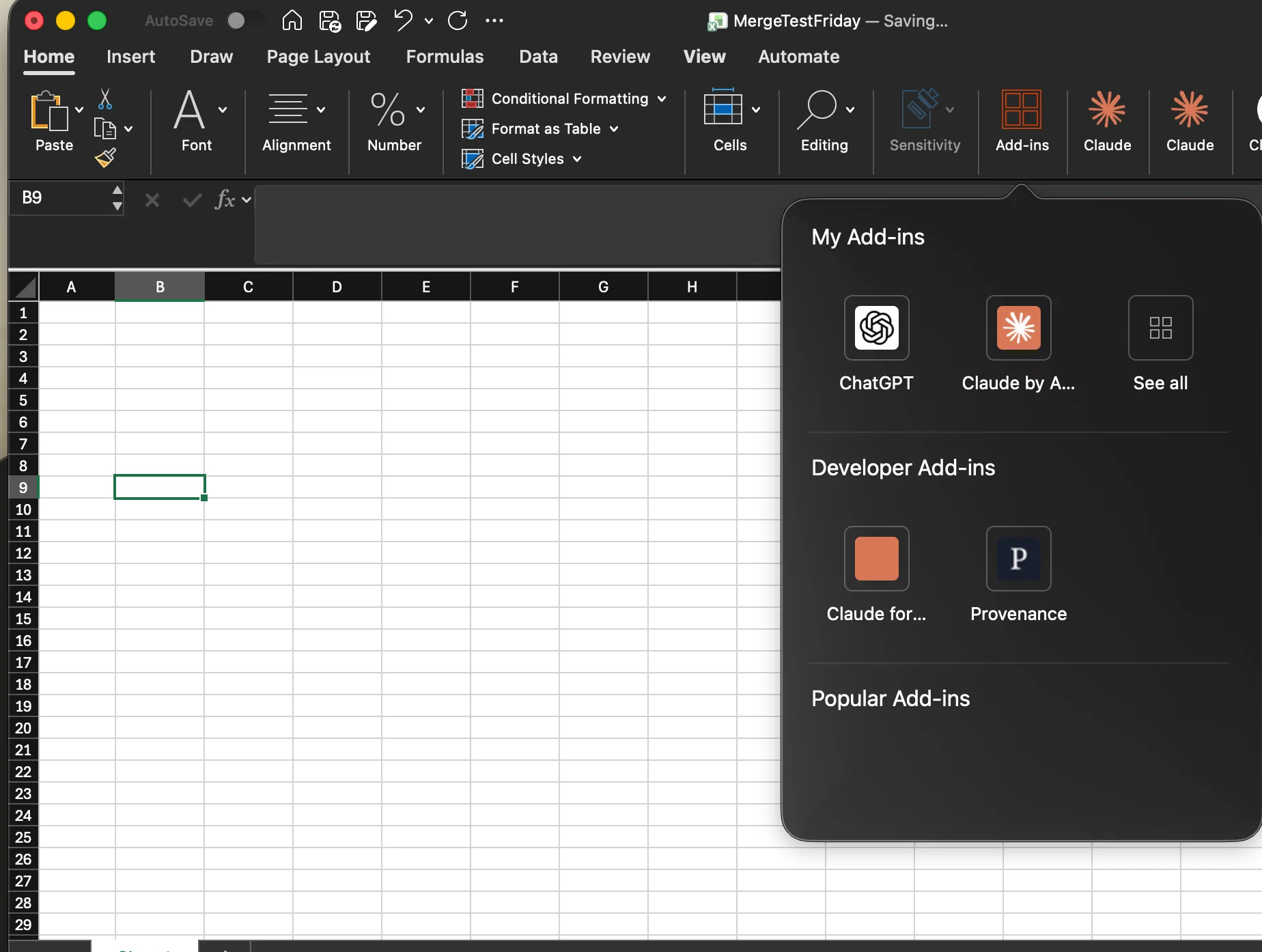
Nothing opened? This machine may not have desktop Office, or your firm may block store installs. You can add Provenance from the AppSource listing in your browser, or in Excel from Home → Add-ins by searching for Provenance. If your firm blocks the store, ask IT to run the firm-wide deploy below.
Deploy to your whole firm
None of this is needed to install for yourself. For firms that prefer a managed rollout, one Microsoft 365 admin can put Verify workbook on every analyst's ribbon from the admin center, with nothing for analysts to install. Follow the five clicks below; your firm's manifest link is ready at the step that needs it.
Prefer to watch?Watch the firm-wide deploy walkthroughOpens on YouTube in a new tabBefore you start: a few tenant requirements
Centralized Deployment works for most Microsoft 365 business and enterprise plans. It won't work if:
- You're not an Exchange or Global admin. A regular user can't deploy add-ins.
- Your plan doesn't include Exchange Online. The “Microsoft 365 Apps for business/enterprise” plans (Office apps only, no Outlook mailbox) can't deploy custom add-ins, and each user needs an active Exchange Online mailbox, not on-premises Exchange.
- Add-ins are turned off org-wide: the
AppsForOfficeEnabledsetting is off, or custom-app upload is blocked in your tenant. - You assign it only to nested groups. Assign to individual users, everyone, or top-level mail-enabled groups.
- Users are on old Office builds. Excel and PowerPoint need Windows 1704+ or Mac 15.34+.
- You're in a sovereign or government cloud (GCC, GCC-High, DoD), where support is limited.
Not sure? Microsoft's Centralized Deployment Compatibility Checker verifies your whole tenant in one run.
Open admin.cloud.microsoft/#/Settings/AddIns and sign in as a Microsoft 365 admin. It lands on your firm's Add-ins page.
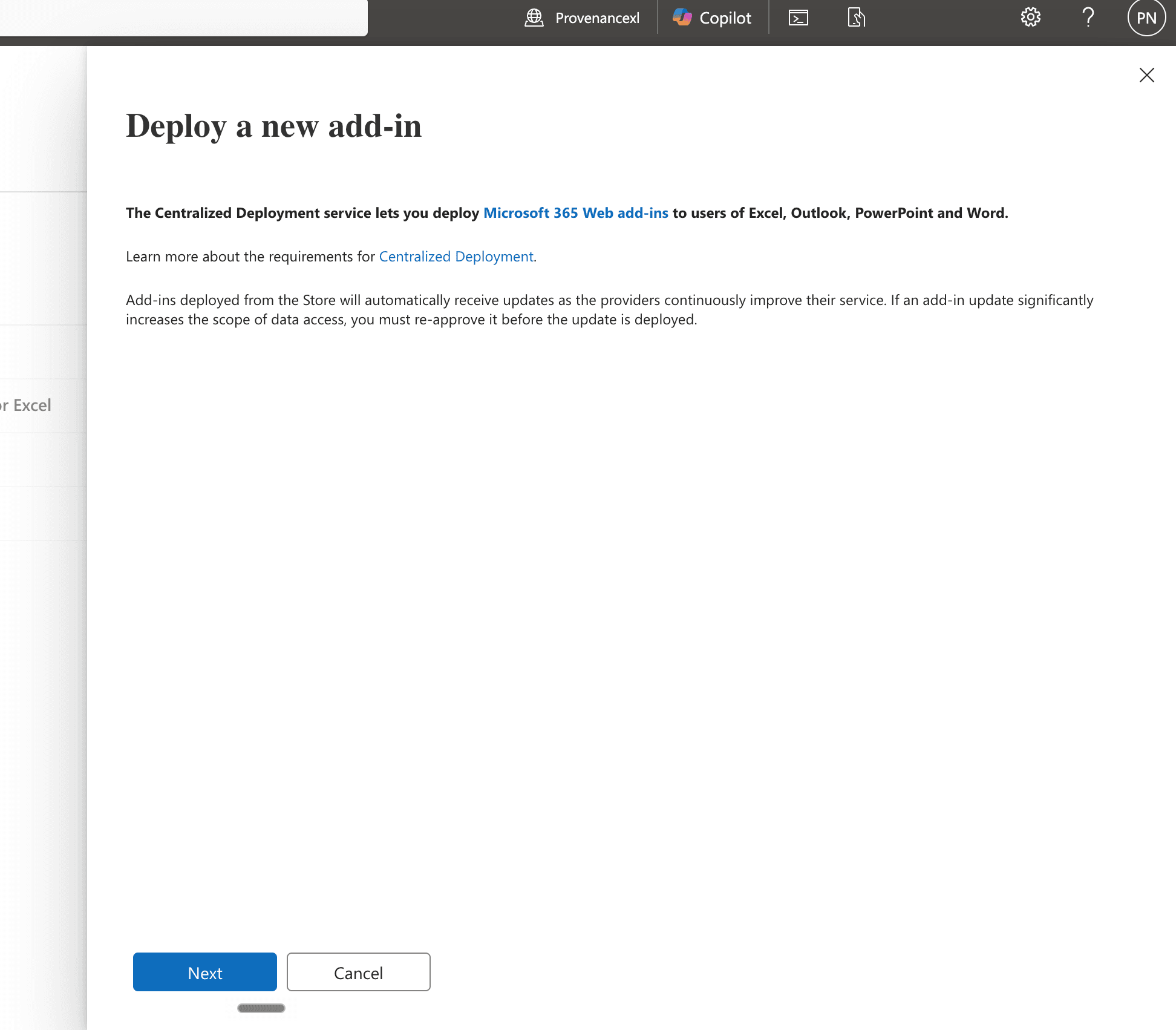
Click Deploy Add-InThe Centralized Deployment panel opens with a short intro.
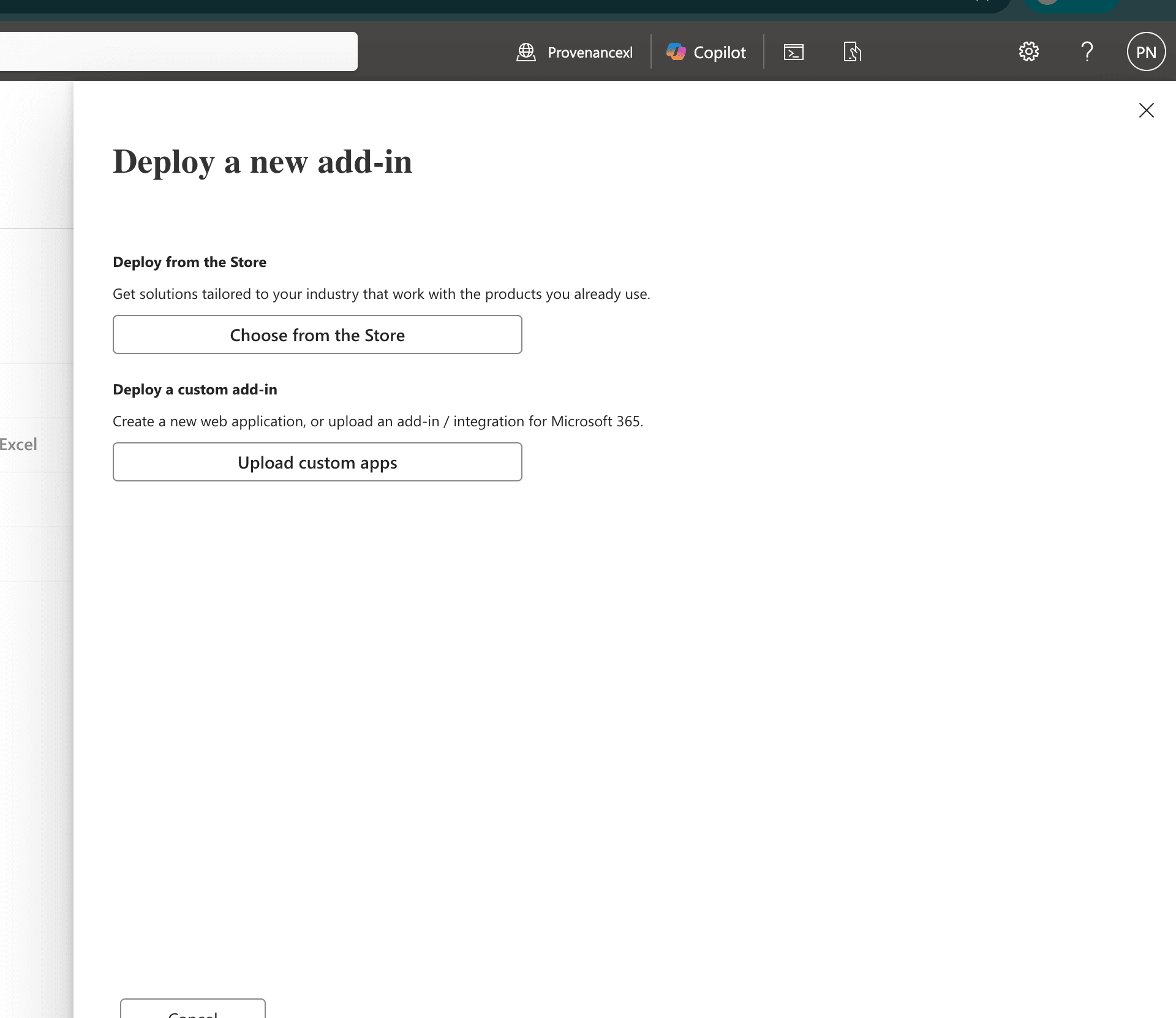
Click NextChoose how to add it. This walkthrough deploys Provenance as a custom add-in from your firm's manifest link.
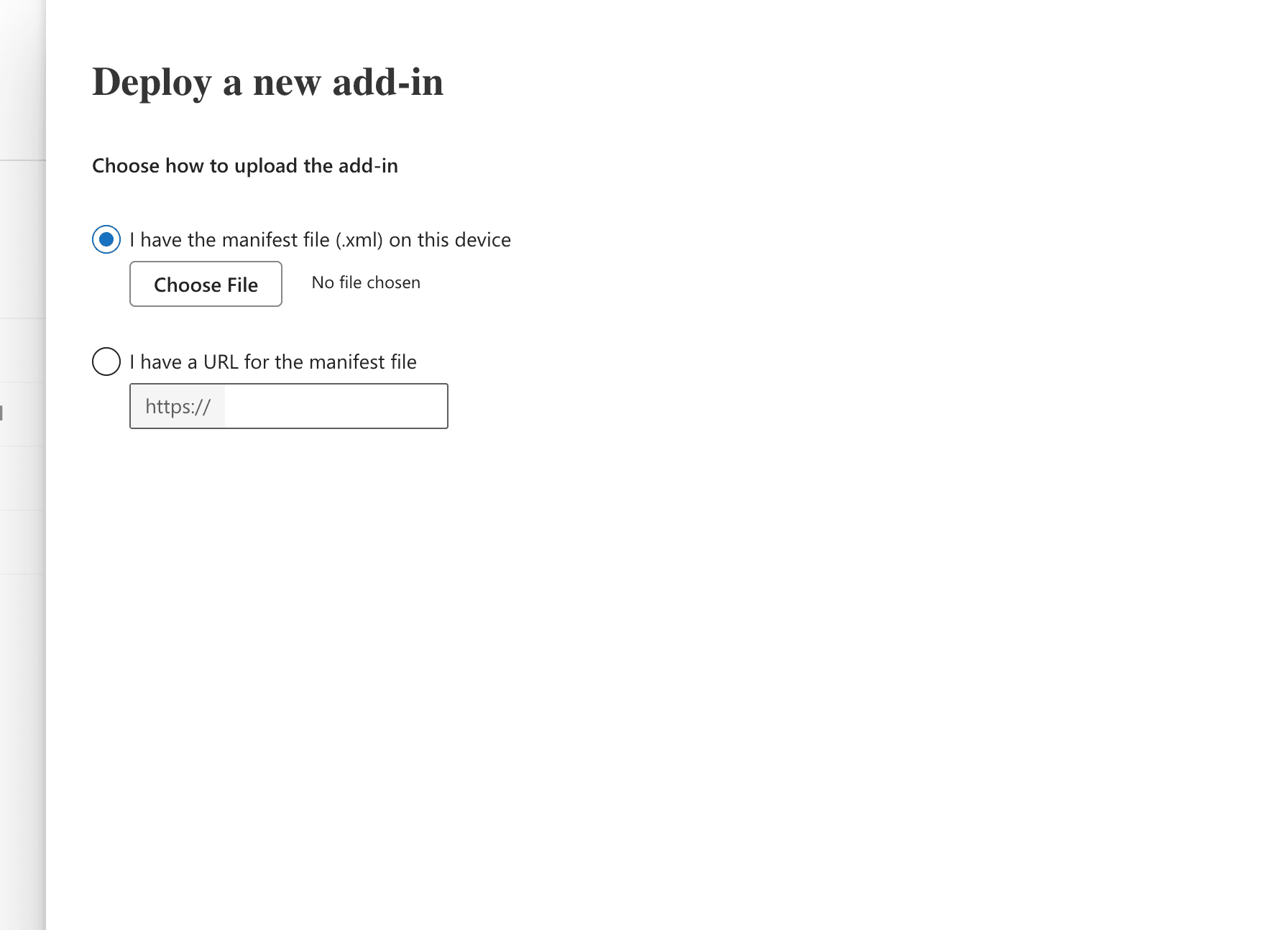
Click Upload custom appsChoose I have a URL for the manifest file, paste your firm's manifest link, then click Upload.
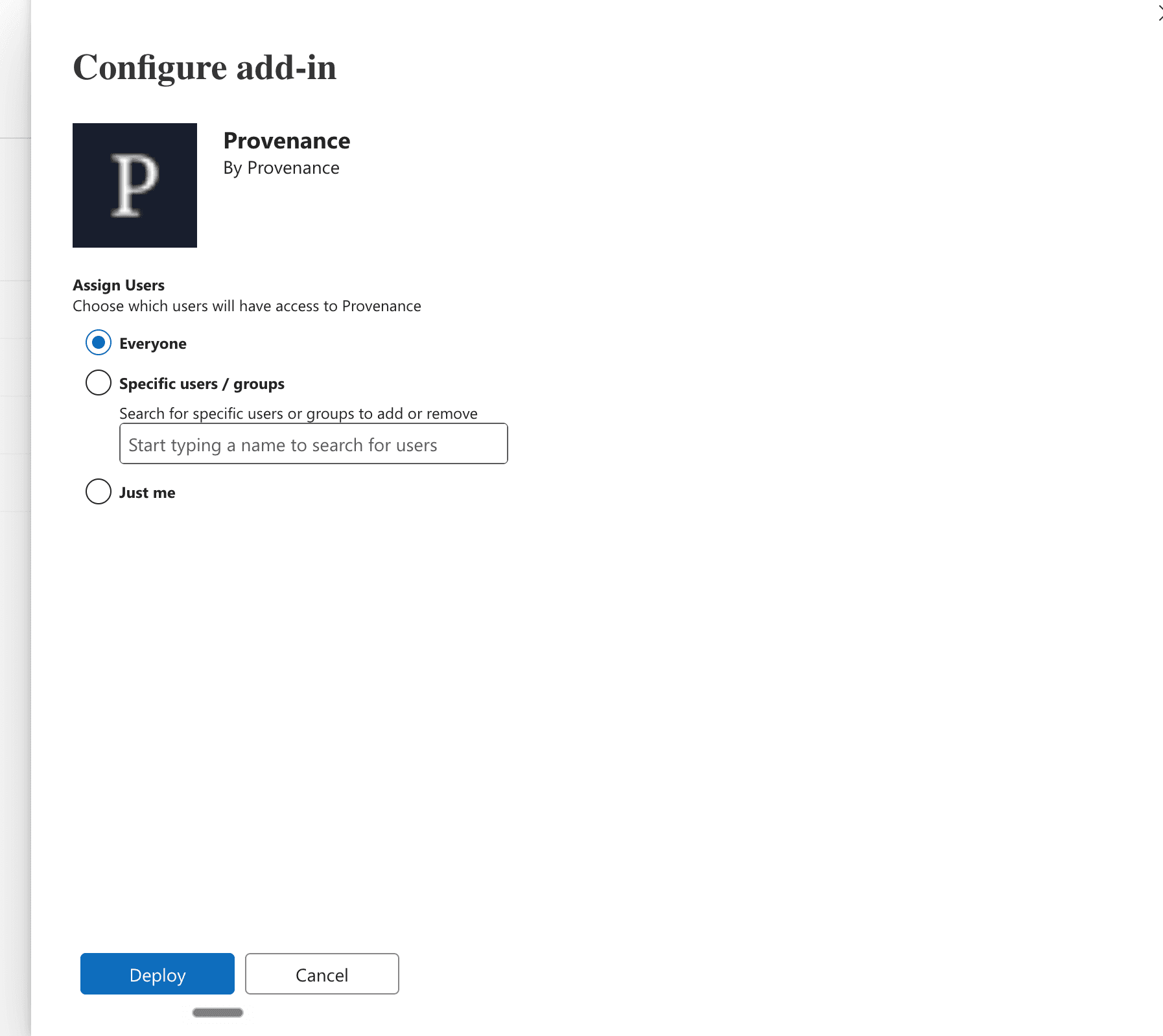
Paste the link, then click UploadYour firm's manifest linkhttps://app.provenancexl.com/api/addin/manifestAssign who gets it, Everyone or specific users and groups, then deploy.
Click Deploy
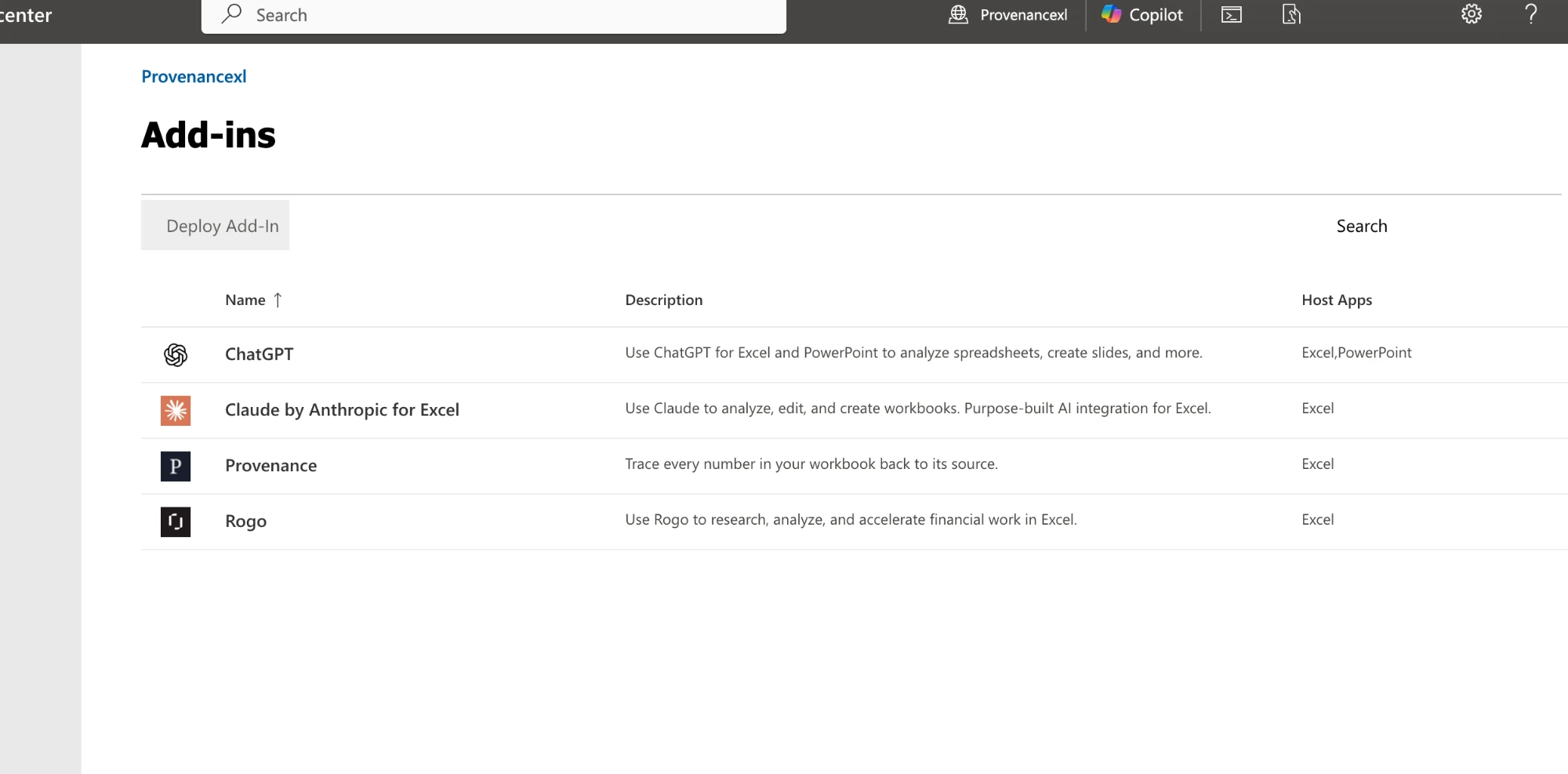
You'll see Verify workbook appear on every assigned user's Home tab in Excel, and Capture deck on a Provenance tab in PowerPoint, with nothing for them to install.
Give it time to roll out. Microsoft propagates org add-ins on its own schedule, usually within an hour, though it can take up to 24 hours, and that's normal, not a failure. While it rolls out: users should fully quit and reopen Excel or PowerPoint; it may first appear under Insert → My Add-ins → See all before the ribbon button lands; and updates from then on are automatic. Don't remove and re-add it to “fix” a delay; that only restarts the clock.